

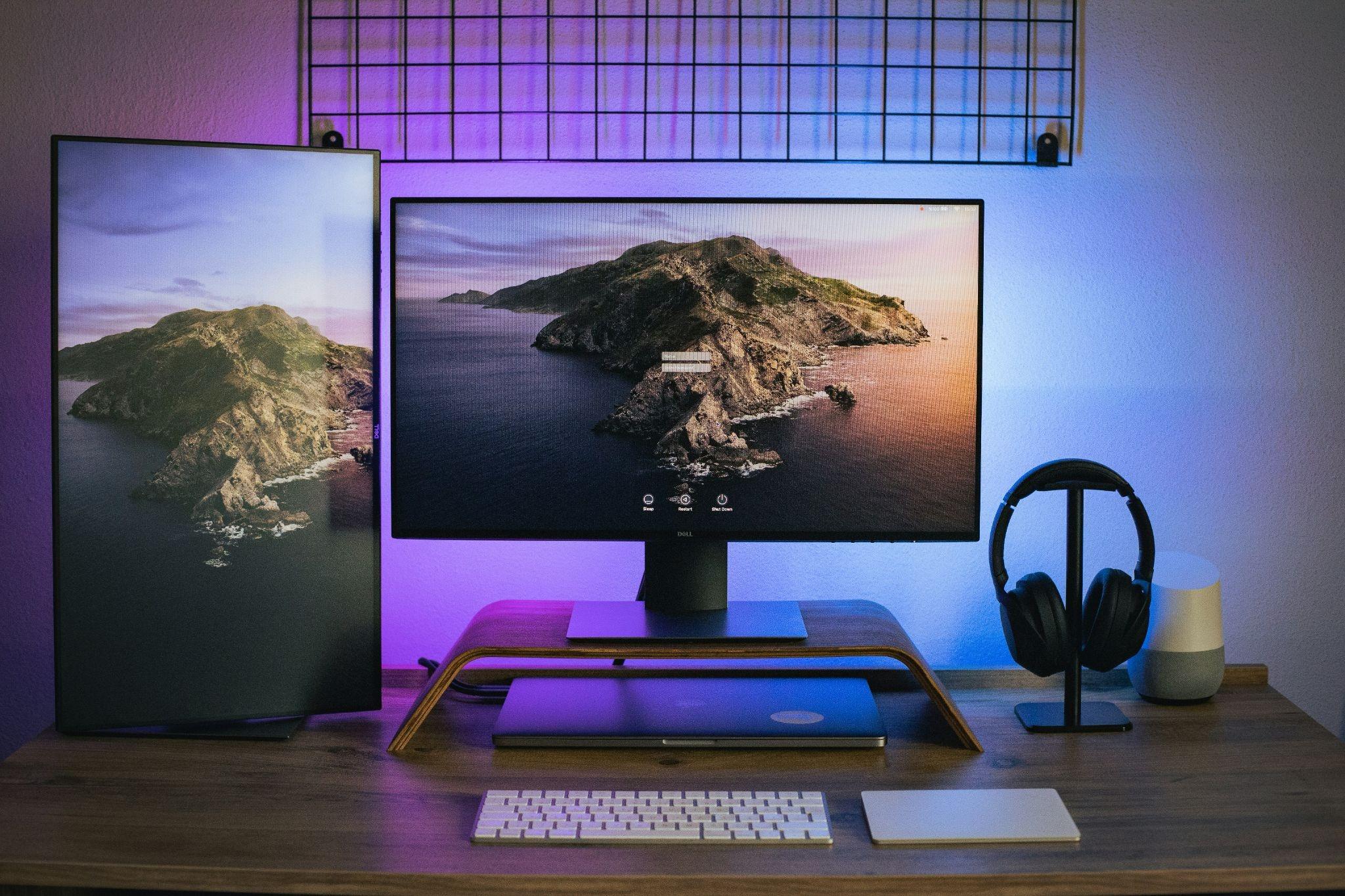
Image Credit: Mert Ceyhan from Unsplash.
A dual-monitor setup in an office, or even a home office, offers more than a few benefits. It makes working easier and more productive. You can even game better with them. But, you’ll need to know how to set up dual monitors on a computer desk properly to actually see these benefits.
This doesn’t have to be nearly as complicated as many people realize. When I upgraded my home office to a dual-monitor setup, it was surprisingly simple. It just takes a few quick steps, and there shouldn’t be anything to worry about.
But, there are a few things to keep in mind when you’re doing this.
Why Use a Dual-Monitor Setup?
When you’re used to using a single monitor, you still might not be sure of the appeal that a dual-monitor setup offers. A second monitor gives you more flexibility and reduces the need to constantly switch between tabs and windows.
Dual monitors can be especially useful for:
- Remote Work
- Graphic Design
- Video Editing
- Gaming
- Coding
- Financial Trading
- Streaming
- Online Learning
Instead of cramming everything onto one screen, you can dedicate each monitor to specific tasks. You could have one screen for reference material and the other for what you’re creating, for example.
What You Need Before You Set Up Your Dual Monitors
The benefits could be more than enough to persuade you to invest in a dual-monitor setup. While figuring out how to set up dual monitors on a computer desk is part of this, you’ll first need to know what you need.
Naturally, two compatible monitors and a desktop or laptop will be the most obvious of this. But, that’s not all you need. You could also need to pick up:
- HDMI, USB-C Cables, or DisplayPort
- Desk With Enough Surface Space
- Monitor Stand or Monitor Arms
- Surge Protector or Power Strip
Check your computer ports before you buy anything. This lets you find out the connection types, which will be essential when you’re connecting everything. Nobody wants to end up buying monitors that aren’t going to work with their computer and needing to replace them without having used them.
Picking the Right Desk for Two Monitors
Speaking of which, having the right desk is an overlooked part of this. The desk size plays an integral role in how comfortable and easy to use everything is, and whether or not your new monitors will actually fit on it.
A cramped desk can make even premium monitors feel uncomfortable to use. Some of the more recommended desk sizes include:
- A minimum width of 1397 mm.
- An ideal width of 1600 mm to 1829 mm.
- A depth of at least 610 mm to 762 mm.
If you’re using large, 32 inch monitors, extra depth becomes even more important. This makes sure the desk isn’t uncomfortable to use while making sure you have enough room to work efficiently and use any connected devices you might have.
How to Set Up Dual Monitors on a Computer Desk: Step-by-Step Guide
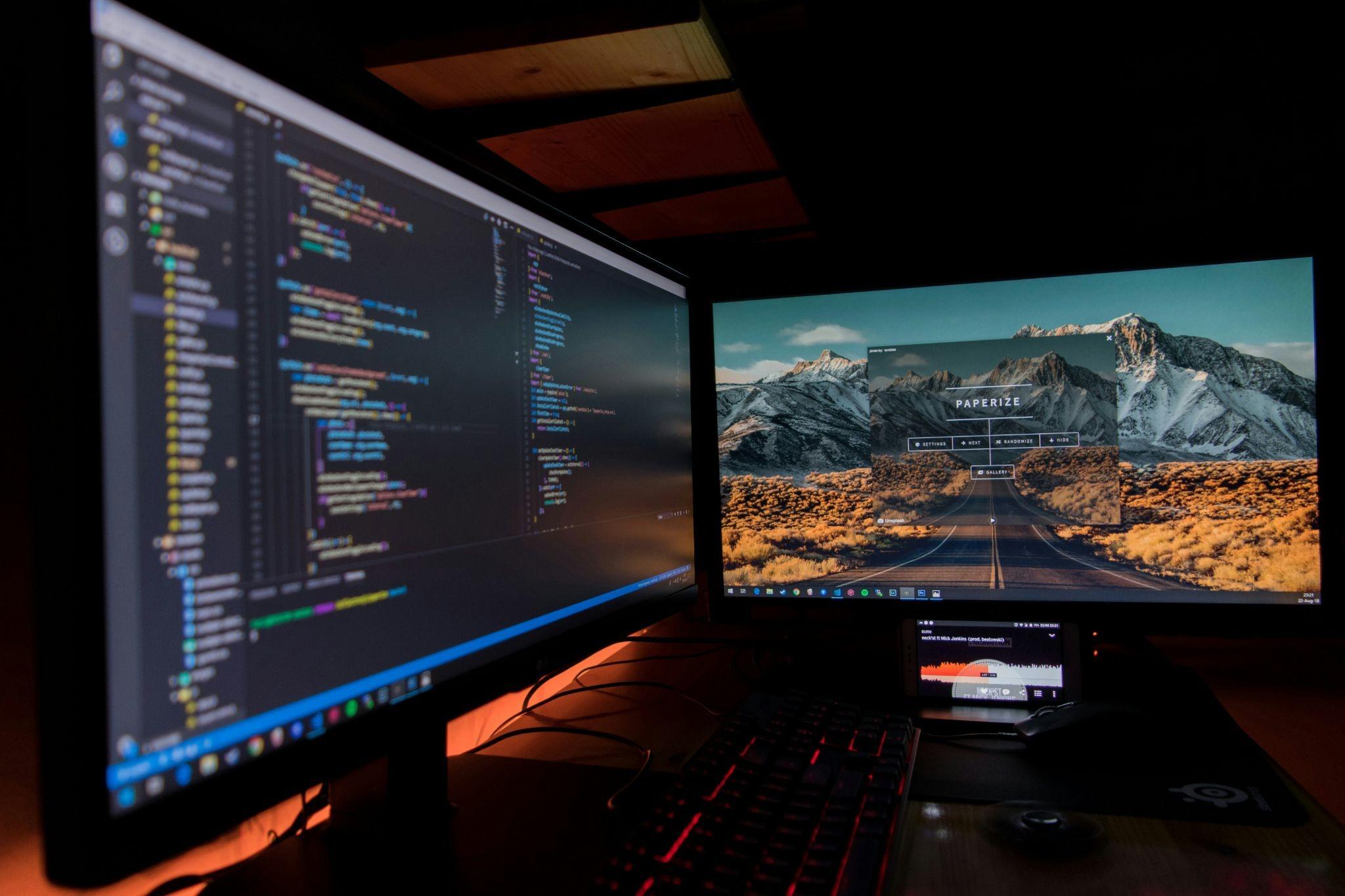
Image Credit: Fotis Fotopoulos from Unsplash.
Once you have the right ones, you’ll need to know how to set up dual monitors on a computer desk. This doesn’t need to take too long or be too hard. It just takes a few specific steps to make sure everything’s set up perfectly.
Position Your Desk Properly
Desk placement will be a priority here, even though it’s often easy to overlook. Make sure your desk is in the right place. Ideally, it’ll be near enough power outlets for your needs, positioned away from direct glare, and with enough room for adequate airflow for your monitors.
Natural lighting helps to reduce eye strain, but direct sunlight on your monitors will create reflections. Avoid this as much as you can. Thankfully, it should just be a matter of repositioning your desk or monitor, and it should be relatively easy.
Arrange the Monitors
Now you’ll need to arrange your monitors, which doesn’t have to take too much effort. But, you’ll have several options for this. Some of these stand out more than others, like:
- Side-by-Side Layout - This is the most common option, as it’s the quickest and easiest to set up. Position both monitors at eye level for this.
- Primary-Centered Layout - Place your primary monitor directly in front of you with the secondary monitor being slightly angled.
- Vertical Monitor Layout - One monitor stays horizontal while the other is positioned vertically.
These all offer their pros and cons, with each being great for specific needs and situations. Consider your daily use of the monitors and go for the one that helps with them best. Don’t forget you can always rearrange them when you need to, especially if your workflow or needs change.
Mount the Monitors
Now you’ll need to mount the monitors. You’ve two main options for this, monitor stands and monitor arms, both of which offer pros and cons. While monitor arms will usually be a separate purchase, they free up a lot of desk space and improve overall flexibility with placement and workflow.
If you plan on using other computer accessories, like speakers, this could end up being vital. You might not end up having the space if you went with a more traditional monitor stand. If budget’s an issue, however, the stand can still be an effective option.
Connect the Monitors
Now it’s time to connect the monitors. Usually, you can do this with HDMI, DisplayPort, or USB-C, depending on the monitors you’ve bought. Once they’re connected, setting them up doesn’t take too much longer.
But, you’ll still need to take a few more steps here. If you’re using Windows, you’ll need to:
- Open Display Settings
- Selected Extend These Displays
- Arrange Your Monitors Virtually
On MacOS, it looks slightly different, but it isn’t too hard. You’ll just have to:
- Open System Settings
- Select Displays
- Arrange Your Monitors Virtually
Whether you’re using Windows or MacOS, this should only take you a few minutes, and there shouldn’t be any major hiccups here.
Adjust the Display Settings
Now we’re onto fine-tuning a few things so your monitors look and work as perfectly as possible. There are a few notable areas to focus on with this, with the resolution, refresh rate, brightness, and scaling being some of the more notable here.
Everyone has their preferences with this, so it’s worth experimenting until you find the perfect settings for you. And, you’re better off matching the settings on both monitors so you get the same visuals across them. If you work on visuals regularly, this is one of the more important steps to focus on.
Organize the Desk Setup
With that out of the way, your dual monitors should be up-and-running, and they’ll be perfectly fine-tuned. But, that doesn’t mean you’re completely done. Organizing your desk once you’ve set up dual monitors shouldn’t be overlooked.
Thankfully, this doesn’t need to be too hard. Using the right essentials could be more than enough to help with this, with some of the more notable being:
- Cable Trays
- Velcro Cable Ties
- Under-Desk Organizers
- Wireless Peripherals
Each of these offer their pros and cons, and there’s no bad choice with any of them. Go with the ones that help you organize your desk better. It’ll make using it, and your monitors, a lot easier and less of a hassle.
The Best Dual Monitor Layouts: Top Picks Based on Your Needs
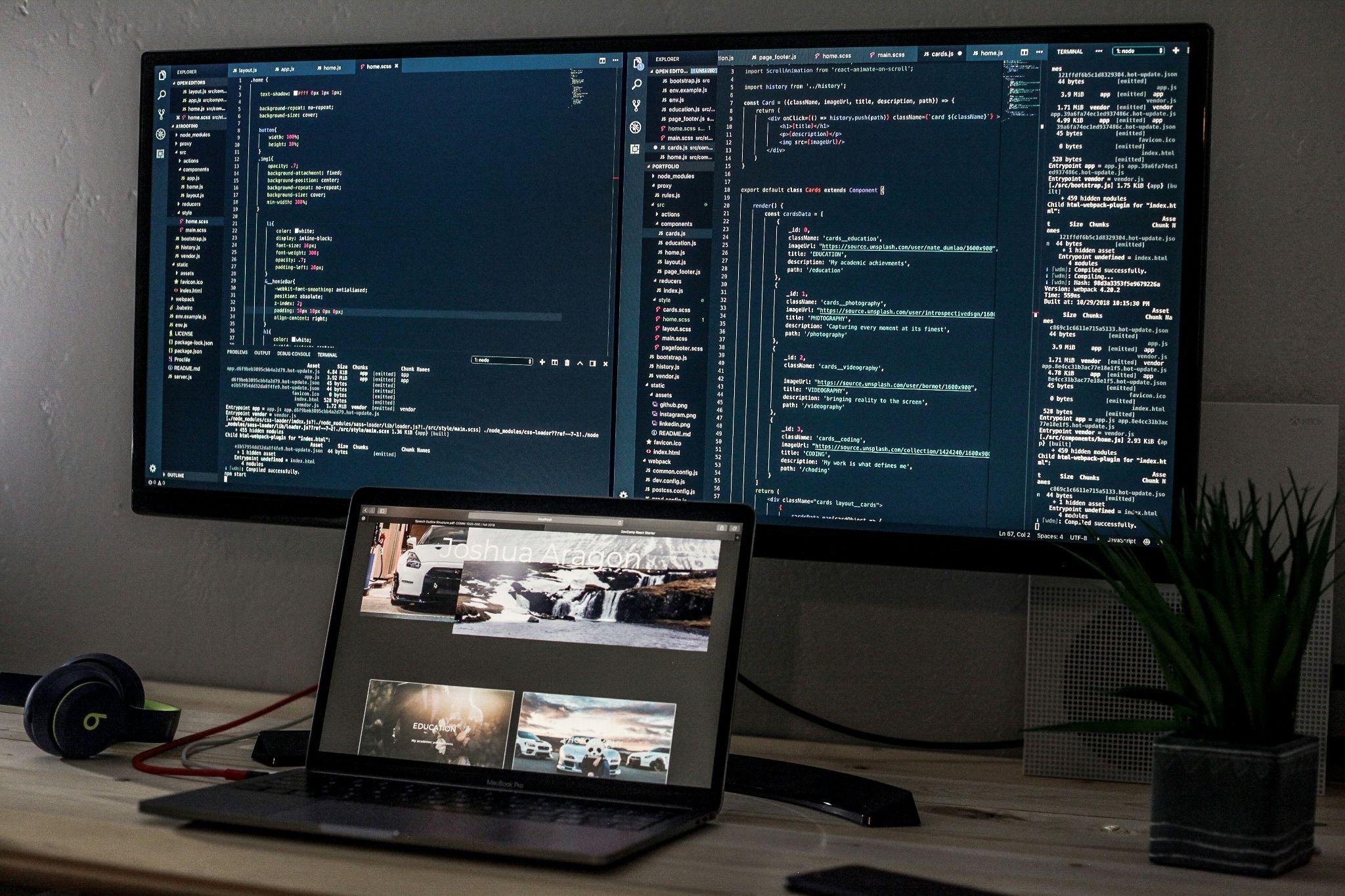
Image Credit: Joshua Aragon from Unsplash.
The setup and layout of your monitors will play a vital role in how useful and functional they are, as well as affecting more than a few other areas. You’ll have plenty of options for this, each offering their pros and cons.
Some of the more notable of these are:
- Productivity Setup - This is great for remote workers, students, and office workers. It features side-by-side monitors and ergonomic keyboard placement to make working easy.
- Gaming Setup - As you’d expect, this is best for gamers and streamers. The setup itself features curved displays, monitor arms, and usually also include speaker integrations.
- Creative Professional Setup - This is a great option for the likes of editors, designers, and anyone else in a creative field. Color-calibrated monitors, vertical secondary integration, and extra desk depth define this.
These are far from the only setups you can go for with dual monitors, but they tend to be some of the more popular.
Cable Management & Ergonomics: What to Keep in Mind
Some of the more overlooked aspects of learning how to set up dual monitors on a computer desk are the cable management and overall ergonomics. When it comes to the ergonomics, keep a few specifics in mind:
- Ideal Monitor Height - The top of the screen should sit roughly at eye level. This reduces neck strain, shoulder tension, and fatigue.
- Proper Viewing Distance - You should usually be sitting with your face between 508 mm and 762 mm from the monitor. Larger displays might need a larger distance.
Then there’s cable management. Naturally, you’ll have more cables to sort out, and you wouldn’t want them to make a bit of a mess. Try using:
- Cable Sleeves
- Under-Desk Runs
- Adhesive Clips
- Wireless accessories
These help to keep your desk clean and organized whenever you’re working, as well as avoiding any potential tripping hazards.
Dual-Monitor Setup: Comparing Your Options
Setup Type | Best for | Desk Size Needed | Recommended Monitor Size | Key Advantage |
Side-by-Side | Office Work | Medium | 24 to 27 inches | Easy multitasking |
Vertical & Horizontal | Coding | Medium | 24 to 32 inches | Better document viewing |
Curved Dual Setup | Gaming | Large | 27 to 34 inches | Immersive experience |
Ultrawide & Secondary | Creative Work | Large | 34+ inches | Advanced Workflow |
Dual Monitor Arms | Minimalist Setups | Small to medium | Any | Saves desk space. |
Once you know how to set up dual monitors on a computer desk, it should be a breeze. But, that doesn’t mean just doing it without thinking about it too much. It’s worth keeping a few tips in mind when you’re setting everything up.
They help make sure you’ve got the best workspace from the start, with some of the more notable being:
- Pick Matching Monitors - Using two different monitor sizes or resolutions can feel visually awkward.
- Invest in Monitor Arms Early - Monitor arms can improve aesthetics and ergonomics while freeing up a lot of desk space.
- Don’t Ignore Lighting - Good lighting can often matter as much as the monitors themselves. Get the right lighting to avoid glare and eye strain.
- Leave Space for Upgrades - You never know when you’ll want to upgrade your monitors and other essentials. Leave the space to do that.
These should help make sure it’s as easy as possible to work from your desk once you’ve your dual monitors set up.
Final Thoughts
Figuring out how to set up dual monitors on a computer desk doesn’t need to be hard or take a lot of time. At least, that’s what I found. Putting the effort into it lets you create an efficient and organized workspace where you can easily do any work- or even video game-related activities.
If you’re planning on upgrading your workspace, exploring stylish desks and office furniture from Homary helps you find the perfect desk and other office furniture. Check out our collections today to create a modern office you’re proud of.
FAQs
How much desk space do I need for dual monitors?
Most setups work comfortably on desks at least 1397 mm wide. But, larger monitors could need wider and deeper desks when you want to work comfortably. This is especially true when you have any desk and computer accessories.
Can a laptop run dual monitors?
Yes, most laptops support dual monitors through HDMI, USB-C, Thunderbolt, and docking stations. Setting up two monitors with a laptop shouldn’t be an issue.
What’s the best monitor size for dual monitors?
For most people, 24-inch or 27-inch monitors offer the best balance between productivity and desk space.
Are curved monitors good for dual setups?
Yes, especially for gaming and immersive workflows. But, they usually need larger desks and to be placed right for them to be effective.
Is it better to use monitor arms or monitor stands?
Monitor arms are generally better because they improve flexibility, ergonomics, and desk space, making them easier to use.